AI Usage Skill Visualizer
Now Available in Beta
Extract AI logs in three clicks.
What you can use this for:
・Visualize the creation process behind text written with AI
・Visualize the creation process behind AI-assisted web pages.
・Visualize the creation process behind AI-assisted documents and materials
・Understand how you use AI through conversation logs
・See how the conversation process shaped the final output
■Important
The extension does not automatically send or store your logs.
Conversation logs and any output entered or uploaded to the app are securely transmitted for analysis but are not stored by this service.
Review the extracted log, then paste it into the app’s log input field as needed.
If you used multiple chats, extract the log from each chat separately.
Then add additional log input fields and paste one log into each field.
1. Enter the conversation log
Method 1
Install the browser extension
Prepare ChatGPT, Gemini, or Claude logs using the browser extension
The basic process is the same for Chrome and Edge,
and for ChatGPT, Claude, and Gemini.
First, install the browser extension.
Supported browsers: Chrome / Edge
① Open the extension section in the app
② Choose Chrome or Edge
App screen

①
②


Steps to extract logs using the browser extension
Open ChatGPT, Claude, or Gemini.
① Click the puzzle icon in the upper-right corner of Chrome or Edge.
② Click the “AI Visualization Log Extractor” extension.
Browser screen opened in Chrome or Edge

①
②
③ Click Extract AI Usage Log.
(The log will be extracted and copied automatically.)
Browser screen opened in Chrome or Edge

③
④ Paste the copied log into the log input field.
App screen
④
-
The extension does not automatically send your logs.
Review the extracted log, then paste it into the app’s log input field as needed. -
If you used multiple chats, extract the log from each chat separately.
-
Then add additional log input fields and paste one log into each field.
Method 2
Use the log extraction prompt
① Click the Extract Log button.
The log extraction prompt will be copied.
App screen
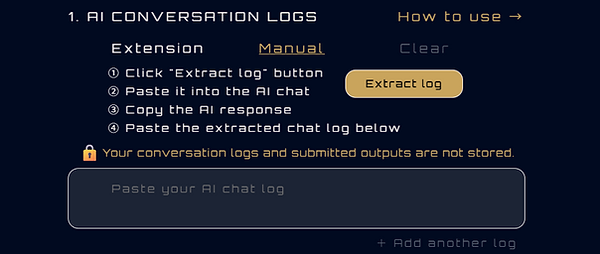
①
② Paste the copied prompt into the AI platform you use.
Your AI platform

②
③ Copy the AI’s response.
Your AI platform

③
④ Paste the copied response into the log input field.
App screen
④
-
If you used multiple chats, extract the log from each chat separately.
-
Then add additional log input fields and paste one log into each field.
When Entering Multiple Conversation Logs
To enter multiple conversation logs, click
“+ Add another log.”
Use the numbered tabs at the lower left to switch between the added input fields.

2. Enter the output
Enter the output details
① Enter your name.
② Enter the output title.
③ Enter a description of the output.
App screen

①
②
③
You can choose from the following input methods.
④ Upload a file
Upload the completed output, such as a PDF, image, document,
or presentation.
App screen

④
⑤ Enter a URL
Paste a website URL.
App screen

⑤
⑥ Enter text
Paste a text-based output, such as an article or other written content.
App screen

⑥
-
Any one of these input methods is sufficient for analysis.
-
Providing multiple types of input can lead to a more accurate analysis.
3. Run the analysis
After entering the required information,
① Click “Evaluate.”
App screen

①
Your AI usage skills will be analyzed from five perspectives:
・Output logic
・Decision-making process
・Revision process
・Human ownership
・Overall consistency
4. Review the results
After the analysis is complete, scores and comments will be displayed.
You can also export the results as a PDF report.
■ For more accurate analysis
The more clearly the following information is included, the more accurate the analysis is likely to be:
・Why you made each decision
・What you revised
・What you selected
・What you rejected
・How those decisions were reflected in the final output
■ Important notes
This system analyzes AI usage skills based on the information provided.
The analysis results are not an absolute evaluation. They are a reference assessment based on the submitted content.
If the submitted information is limited, or if the decision-making and revision process cannot be identified, the system may not be able to generate a sufficiently detailed analysis.

